For people
The phone drives itself: the on-phone assistant
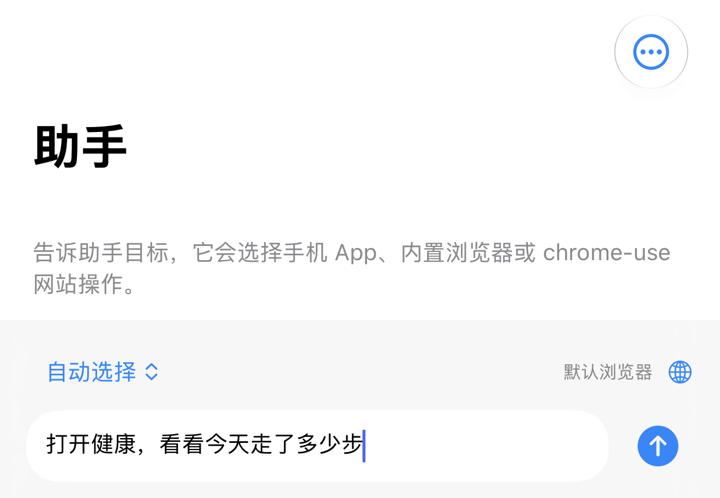
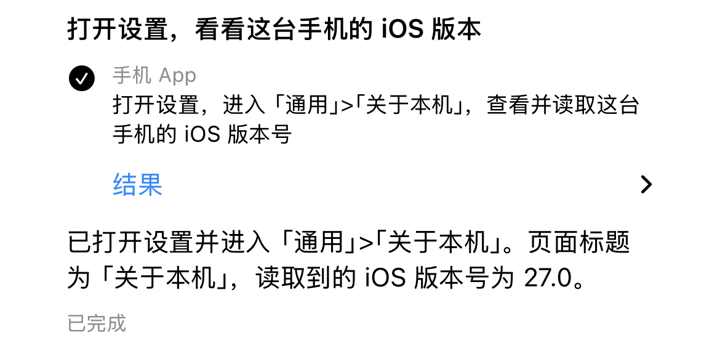
Tell the 助手 (Assistant) tab in Phone Use what you want, and it taps, swipes and types on this same iPhone, then reports back. No computer while it runs: the control service lives on the phone and the model uses your own key.
What you need
- Phone Use installed with a paid developer account (
iphone-use setup-app, see Remote Control › Install the app). Builds signed with a free Apple ID have no local control. - An API key for a model: OpenRouter, Anthropic or OpenAI. With OpenRouter,
freepicks a working free model for you. - A Mac once, for the first pairing. Not after that.
Three steps
- Turn on local control: Settings › 本机控制 (local control) › 启用本机控制, and allow the VPN configuration. If a Mac also hosts this phone, run
iphone-use setup pause --instance <name>on the Mac first. - Add a model: Settings › Models and Services, pick a provider, paste the key, tap Test. Add fallbacks if you like; they are tried in order.
- Give it a task: back in 助手, choose this phone as the device and type, for example, "Open Health and tell me today's step count".
How it works
- The assistant model reads screenshots and the element tree, picks the next step and acts through the local control service. Tasks that have a flow are replayed directly.
- With a Jev key, Jev picks each step quickly and the assistant model takes over only when it gets stuck.
- Payments, sending messages and deleting stop and ask you first. No answer within 5 minutes stops the task.
- You can also pick another paired device (such as a Mac-hosted phone), or the built-in browser or chrome-use for websites.
Notes
- Local control takes iOS's single VPN slot, so it can't run alongside Tailscale or another VPN.
- After a reboot, unlock the phone once before local control comes back.
- Screenshots go to the model provider you configured. Don't run a task over a screen you don't want sent. See Privacy & Security.
Next: Remote Control · Flows & Replay.